The message center is where finished stills from the deep-imager AI image generator show up for preview and download.
Generate, wait, open Messages — then download. Do not spend another credit to “find” the file.
Where do completed stills appear after generate?
In the message center — the messages control in the top nav when you are logged in.
Submit text to image or image to image from the workspace. When the run completes (typically 30 seconds–2 minutes), open Messages. Thumbnails list your recent completed stills.
You do not need to keep the workspace tab spinning to “catch” the file. The message center is the delivery tray for that session’s AI image generator runs.
Record what worked: model name, ratio, and the exact prompt line that survived review. That notebook becomes your reusable playbook across ecommerce, social, and concept batches.
On deep-imager, treat the AI image generator as a credit-aware studio: lock aspect ratio, pick the model, then write the prompt so text to image spends once on a usable frame.
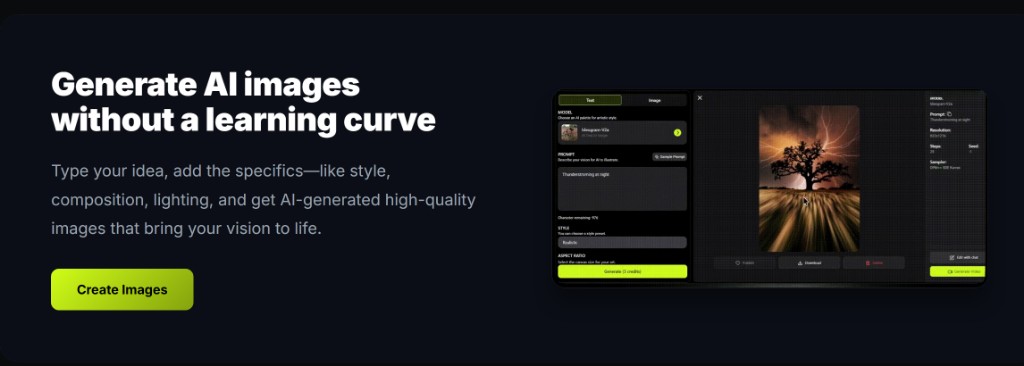
How do you preview and download a still?
Open the completed thumbnail in the message center, then use Download to save the file to your browser download folder.
Preview opens the finished image. Download pulls the current output to your device. Paid plans add HD originals without an intrusive watermark — see pricing from $1/month.
A text to image still and an image to image still both land in the same list. Mode does not change where you fetch the file.
Record what worked: model name, ratio, and the exact prompt line that survived review. That notebook becomes your reusable playbook across ecommerce, social, and concept batches.
On deep-imager, treat the AI image generator as a credit-aware studio: lock aspect ratio, pick the model, then write the prompt so text to image spends once on a usable frame.
- Wait for completed status before opening the thumbnail.
- Download once you accept the still — do not regenerate just to re-download.
- If the run failed, check the credit refund path instead of downloading.
Is the message center the same as the public gallery?
No — the message center is your generation history; the public gallery only shows stills marked Publicly visible and approved for display.
Private client work stays in Messages even when it never appears on the image gallery. Make Same on gallery cards is a separate path from downloading your own output.
Read public vs private stills before you leave Publicly visible on for a pack shot. Remix with image to image from a downloaded file when you need another take.
Record what worked: model name, ratio, and the exact prompt line that survived review. That notebook becomes your reusable playbook across ecommerce, social, and concept batches.
On deep-imager, treat the AI image generator as a credit-aware studio: lock aspect ratio, pick the model, then write the prompt so text to image spends once on a usable frame.
Do you spend credits to open Messages or download?
No — opening the message center and downloading a completed still do not spend credits; only generate does.
New accounts have 5 free credits. Failed jobs that the product marks failed return the credit. Plans: Basic $1/month for 10 credits, Advanced $9.99 for 120, Professional $19.99 for 300.
The step-by-step download path is also in the user guide. For per-model cost on the Generate button, see how credits work.
Record what worked: model name, ratio, and the exact prompt line that survived review. That notebook becomes your reusable playbook across ecommerce, social, and concept batches.
On deep-imager, treat the AI image generator as a credit-aware studio: lock aspect ratio, pick the model, then write the prompt so text to image spends once on a usable frame.
| Action | Credits | Where |
|---|---|---|
| Generate still | Yes — model cost | Workspace |
| Open message center | No | Top nav Messages |
| Preview / download | No | Message center |
| Public gallery listing | No extra | Only if Publicly visible + approved |
How do you keep quality high without wasting credits?
Lock ratio first, run one strong text to image pass, then refine with image to image instead of endless fresh prompts.
Before you click Generate, confirm the credit cost on the button and the aspect ratio for the channel you will actually publish to.
If the model returns a safety or policy error, rewrite the prompt without protected names or sensitive requests rather than retrying the same blocked wording.
For team handoff, save the winner still and the prompt in your dashboard history so the next editor can Make Same or continue with image to image.
On deep-imager, treat the AI image generator as a credit-aware studio: lock aspect ratio, pick the model, then write the prompt so text to image spends once on a usable frame.
Start in text to image or image to image, pick a model such as GPT-4o image, then check pricing from $1/month and how credits work before a long run.