Do not spend a video credit to discover the frame. Use the AI image generator’s still modes first.
Text to image, image to image, then Sora 2 or Veo 3.
Why stills before Veo 3 or Sora 2?
A still is cheaper to reject. Framing mistakes in video waste a larger credit.
Text to image finds the scene. Image to image locks it. Video adds motion.
When a still is close, prefer image to image to keep composition while you change lighting, background, or crop intent. Regenerating from a blank text to image prompt usually costs more exploratory credits.
Record what worked: model name, ratio, and the exact prompt line that survived review. That notebook becomes your reusable playbook across ecommerce, social, and concept batches.
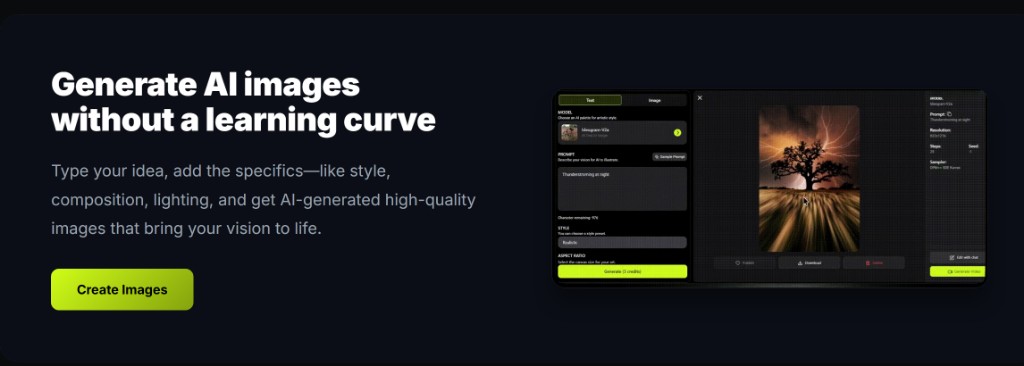
On deep-imager, treat the AI image generator as a credit-aware studio: lock aspect ratio, pick the model, then write the prompt so text to image spends once on a usable frame.
How do you hand a keyframe to video mode?
Keep the prompt, switch mode, pick Sora 2 or Veo 3, and describe camera motion only.
If image-to-video is on the model card, upload the still.
When a still is close, prefer image to image to keep composition while you change lighting, background, or crop intent. Regenerating from a blank text to image prompt usually costs more exploratory credits.
Record what worked: model name, ratio, and the exact prompt line that survived review. That notebook becomes your reusable playbook across ecommerce, social, and concept batches.
On deep-imager, treat the AI image generator as a credit-aware studio: lock aspect ratio, pick the model, then write the prompt so text to image spends once on a usable frame.
What should the 5 free credits be used for?
Four stills and at most one short clip, unless you only came to test video.
Basic $1/month (10 credits) is still a still-heavy plan. Read how credits work for video rates.
When a still is close, prefer image to image to keep composition while you change lighting, background, or crop intent. Regenerating from a blank text to image prompt usually costs more exploratory credits.
Record what worked: model name, ratio, and the exact prompt line that survived review. That notebook becomes your reusable playbook across ecommerce, social, and concept batches.
On deep-imager, treat the AI image generator as a credit-aware studio: lock aspect ratio, pick the model, then write the prompt so text to image spends once on a usable frame.
How long is the wait?
Stills often 30 seconds–2 minutes; video can sit in the same band or longer depending on queue.
Stay on the workspace until status completes so you do not double-submit.
When a still is close, prefer image to image to keep composition while you change lighting, background, or crop intent. Regenerating from a blank text to image prompt usually costs more exploratory credits.
Record what worked: model name, ratio, and the exact prompt line that survived review. That notebook becomes your reusable playbook across ecommerce, social, and concept batches.
On deep-imager, treat the AI image generator as a credit-aware studio: lock aspect ratio, pick the model, then write the prompt so text to image spends once on a usable frame.
How do you keep quality high without wasting credits?
Lock ratio first, run one strong text to image pass, then refine with image to image instead of endless fresh prompts.
Before you click Generate, confirm the credit cost on the button and the aspect ratio for the channel you will actually publish to.
If the model returns a safety or policy error, rewrite the prompt without protected names or sensitive requests rather than retrying the same blocked wording.
For team handoff, save the winner still and the prompt in your dashboard history so the next editor can Make Same or continue with image to image.
On deep-imager, treat the AI image generator as a credit-aware studio: lock aspect ratio, pick the model, then write the prompt so text to image spends once on a usable frame.
Start in text to image or image to image, pick a model such as GPT-4o image, then check pricing from $1/month and how credits work before a long run.